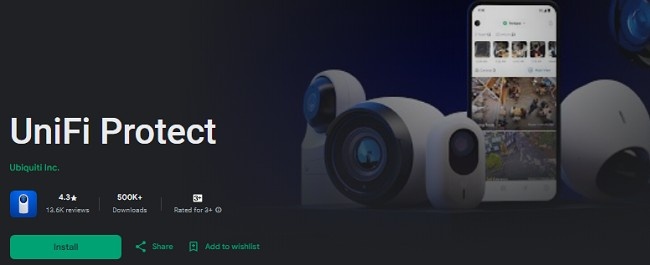
How to Download & Setup UniFi Protect App on Your Apple TV?
As more people turn to smart home technologies, the ability to monitor your home or business security has evolved from traditional CCTV setups to integrated smart security systems. Among the most popular solutions in the market is UniFi Protect, a powerful security platform offered by Ubiquiti Networks. With UniFi Protect, users can access live video streams, review past footage, manage security devices, and customize alerts—all from a single interface.
While the mobile app and web portals for UniFi Protect are widely used, many people prefer to manage their security system from the comfort of their Apple TV. Using Apple TV to view your UniFi Protect system brings the added benefit of a larger screen, more comfortable viewing, and the ability to keep your surveillance system accessible without being confined to a desktop or mobile device.
In this guide, we will walk you through the process of downloading and using the UniFi Protect App on Apple TV. Whether you're using the app for security monitoring or reviewing recorded footage, we'll show you how to get the app up and running on your device.
What is UniFi Protect?
Before diving into the details of how to download and use UniFi Protect on Apple TV, let’s briefly discuss what UniFi Protect is and how it can enhance your security system.
UniFi Protect is a comprehensive security platform that allows you to manage a wide variety of UniFi security devices. These include:
UniFi Security Cameras: High-definition IP cameras with advanced features like motion detection, 4K video recording, and night vision.
Network Video Recorders (NVRs): Devices for storing and managing footage from your cameras.
UniFi Protect Cloud Services: Cloud-based storage and management for offsite data backup and easy access to footage.
UniFi Protect offers a user-friendly interface that enables users to view live video streams, control cameras, set up motion alerts, and more. It works with a range of UniFi cameras and NVRs, making it a great choice for both residential and commercial security needs.
Why Use UniFi Protect on Apple TV?
The UniFi Protect App is available for mobile devices (iOS and Android), but there are distinct advantages to using it on Apple TV:
Larger Screen: Viewing live camera feeds and recordings on a larger screen is much easier and more enjoyable. It allows you to monitor your property in detail, whether it’s your home or office.
Enhanced Viewing Experience: Apple TV offers higher resolution support and a more immersive viewing experience compared to mobile devices, making it ideal for security surveillance.
Ease of Access: With the app available on your TV, you don’t need to use your phone or computer to check your cameras—just turn on the TV and use your remote.
Multi-Tasking on a Big Screen: The larger display allows you to monitor multiple camera feeds or recorded footage simultaneously, which might be more challenging on mobile devices or small desktop screens.
In the following sections, we’ll guide you step by step on how to download and use UniFi Protect on your Apple TV.
Download & Install UniFi Protect App on Your Apple TV
Installing the UniFi Protect App on Apple TV is a straightforward process, and it involves a few simple steps. Here’s how you can do it:
Step 1: Check Compatibility
Before you begin, make sure your Apple TV meets the requirements to run the UniFi Protect App. The UniFi Protect App is compatible with Apple TVs running tvOS 12.0 or later. You’ll also need to ensure that your Apple TV is connected to the internet and linked to the same Apple ID as your other Apple devices.
Step 2: Access the Apple TV App Store
To download the UniFi Protect App on your Apple TV, follow these steps:
Turn on your Apple TV and make sure it is connected to your Wi-Fi network.
Use your Apple TV remote to navigate to the App Store from the main screen of your Apple TV.
Once inside the App Store, select the Search option located at the top of the screen.
Step 3: Search for UniFi Protect App
Now, you need to search for the UniFi Protect App:
In the Search field, type UniFi Protect using the on-screen keyboard.
The search results will display the UniFi Protect App. Select it to view more details.
Step 4: Download and Install the App
Once you have located the app:
Select the Get button to begin the download and installation process.
If prompted, sign in with your Apple ID and confirm the installation.
Once the app finishes downloading and installing, you will see the UniFi Protect icon on your Apple TV’s home screen.
How to Set Up & Use UniFi Protect App on Apple TV?
Now that you have successfully downloaded the app, it's time to set it up and start using it. The process for setting up UniFi Protect on Apple TV is user-friendly and quick.
Step 1: Launch the UniFi Protect App
On your Apple TV home screen, locate and select the UniFi Protect app. It will open to a login screen where you can enter your credentials to access your security system.
Step 2: Log in to Your UniFi Protect Account
To access your UniFi Protect system:
Enter your Ubiquiti account credentials (email and password). If you don’t have an account, you can create one at this point.
After logging in, you’ll see a list of your UniFi Protect devices, including cameras and NVRs.
Step 3: View Live Video Feeds
With the app set up and logged in, you can begin viewing live footage from your security cameras. You can:
Select a camera to view live footage in full-screen mode.
Swipe through different camera views if you have multiple cameras installed.
Adjust camera settings, such as brightness or contrast, directly from the app.
Step 4: Playback Recorded Footage
In addition to live video feeds, you can access recorded footage from your cameras:
From the app’s main interface, navigate to the Timeline tab.
Here, you can scrub through recorded footage to locate specific events or timeframes. The UniFi Protect app lets you quickly jump to specific moments to review important footage.
Step 5: Set Up Alerts and Notifications
One of the key features of UniFi Protect is the ability to set up custom alerts for motion detection, camera status, and more. Here’s how to configure them:
From the main interface, go to the Settings menu.
Select Notifications.
You can choose to enable alerts for specific events, such as motion detection or camera disconnections. Customize the notification settings to receive alerts through the app, via email, or even as push notifications on your Apple TV.
Step 6: Use the App for Surveillance and Security Monitoring
Once you’re familiar with the basic functions of the app, you can use UniFi Protect on Apple TV to:
Monitor your home or office 24/7.
Ensure your security system is running smoothly by checking the status of cameras and devices.
View security events, such as someone entering your home, in real-time or from past footage.
Enjoy an enhanced viewing experience with high-definition streams.
Why Use UniFi Protect App on Apple TV?
Using UniFi Protect on Apple TV has several advantages:
Convenience: You can easily monitor your property from the comfort of your living room or office, without needing a mobile device or computer.
Enhanced Viewing: With the large screen and higher resolution of Apple TV, you can experience detailed video feeds and recorded footage more clearly than on smaller devices.
Ease of Navigation: The interface is intuitive and easy to navigate with the Apple TV remote. You can quickly access live feeds, camera settings, and historical footage with a few clicks.
Multi-Room Viewing: If you have more than one Apple TV, you can set up different rooms to view live feeds from various cameras simultaneously.
Troubleshooting Tips for UniFi Protect on Apple TV
If you run into issues while using UniFi Protect on your Apple TV, here are a few troubleshooting tips:
App Not Working: Ensure that your Apple TV is connected to the internet. Try restarting the app or your Apple TV to resolve any connectivity issues.
Video Feed Lag: If there’s a delay or lag in the video feed, check your internet connection. A poor Wi-Fi connection can affect the performance of live streaming.
Unable to Login: If you’re having trouble logging in, double-check your Ubiquiti account credentials. If you forgot your password, you can reset it through the login screen.
Conclusion
Installing and using UniFi Protect on your Apple TV gives you the flexibility to monitor and manage your security system on a larger screen, offering a better viewing and control experience. Whether you’re reviewing recordings, checking live footage, or setting up alerts, UniFi Protect on Apple TV makes managing your security system easier and more accessible.
By following the simple installation steps and setup instructions outlined in this guide, you can start using UniFi Protect on your Apple TV right away. With enhanced features like live video streaming, easy navigation, and high-definition footage, UniFi Protect is the perfect solution for anyone looking to take their home or business security to the next level.
Updates